GONE Fishing Cant Use Mouse To Look Around? Fix Guide
Check camera-lock triggers, menu controls, and fixes from recent GONE Fishing updates to get your frozen view moving again and regain mouse control.
Jump to
Can’t Look Around in GONE Fishing? Start With the Camera Fixes
A frozen view makes fishing—and watching for whatever is approaching the cabin—a lot harder. If you’re searching for “GONE Fishing cant use mouse to look around,” start by matching the problem to its trigger: casting, respawning, joining a lobby, or opening a menu. Several camera bugs have already received fixes, so “GONE Fishing cant use mouse to look around” needs a more specific diagnosis than “my mouse stopped working.”
Update GONE Fishing through Steam before trying to reproduce an older camera bug. A previous update addressed a particularly relevant problem: casting while looking upward could snap the camera sideways and lock its direction.
Other updates addressed an incorrectly rotated camera after respawning, an unexpected switch to the host’s viewpoint, and an invisible cursor in the options menu. Those problems affect different parts of the experience, even though each can make your controls feel broken.
Use this checklist to narrow down what happened:
- Identify the action immediately before the problem started.
- Separate a frozen gameplay view from a missing menu cursor.
- Check whether you are seeing your character’s perspective or the host’s.
- Distinguish a camera that will not turn from movement that looks jittery.
That distinction gives you a useful next step and makes any recurring bug much easier to explain.
Match the Camera Problem to What Triggered It
The most useful detail in a “GONE Fishing cant use mouse to look around” problem is often what happened immediately beforehand. Casting a rod and joining a public lobby have both been associated with camera bugs, but their symptoms are different.
 Image: Steam / GONE Studios
| Symptom | Trigger addressed by an update | Fix introduced |
|---|---|---|
| Camera snaps sideways and stays locked | Casting while looking upward | Fixed the sideways snap and directional lock |
| Host’s camera appears rotated 90 degrees | Respawning | Fixed the incorrect camera rotation |
| View switches to the host’s perspective | Joining a public lobby | Fixed the unwanted viewpoint switch |
| Cursor disappears inside options | Opening the options menu | Fixed the invisible menu cursor |
| Clients appear jittery while looking around | Multiplayer camera movement | Addressed in the 1.0 release |
Camera Locked After Casting
The casting bug is the closest match to a view that abruptly turns and then refuses to move normally. Its defining sequence was looking upward, casting, and experiencing a 90-degree snap to the left or right.
If that sequence matches your experience, prioritize updating the game. When describing a recurrence, include both the upward aim and the cast. “Camera locked after casting upward” gives a much clearer picture than “mouse broken.”
For a comparison cast, face the water rather than aiming overhead. This follows the basic casting instructions and avoids repeating the historical trigger during that comparison. It is a diagnostic check, not a replacement for the patch.
Wrong View After Joining or Respawning
An unexpected perspective deserves its own diagnosis. A public-lobby bug could move a joining player’s camera into the host’s viewpoint and leave it there for at least a minute or two. A separate issue rotated the host’s camera after respawning.
Watch whose movements the view follows. If the perspective belongs to someone else, describe that directly. If your own view is rotated after a respawn, record that sequence instead.
Neither symptom is usefully described as a casting problem unless a cast actually triggered it. Keep those event sequences separate when checking whether an issue has returned.
Separate Mouse Look From Menus and Fishing Inputs
Before changing anything, identify which mouse function is affected. The developer’s control guide assigns mouse buttons to fishing and item use, while the inventory uses a keyboard shortcut and clickable bait selection.
These are separate interactions. Being able to click bait does not, by itself, explain why the gameplay camera stopped turning. Likewise, an invisible options cursor does not describe the same failure as a camera locked toward the shoreline.
| Action | Default control |
|---|---|
| Move | WASD |
| Interact | E |
| Enter boat | F |
| Open inventory | TAB |
| Cast line | Mouse 1 |
| Reel in | Mouse 1 |
| Use item | Mouse 2 |
| Sprint | Shift |
For “GONE Fishing cant use mouse to look around” troubleshooting, check each relevant interaction separately. Note whether movement works, whether inventory interaction works, and whether the camera responds during ordinary gameplay.
Use a clear description such as: “WASD movement works, but moving the mouse does not turn the view after casting.” Only include details that actually match your session.
Inventory Interaction Has a Different Purpose
The basic baiting sequence is to equip a rod, open the inventory with TAB, and click a bait item such as a worm or minnow. That click applies bait for fishing.
Use this interaction to describe whether menu input is still responding. Avoid treating successful bait selection as proof that every mouse function is working correctly.
The options menu also had its own cursor-visibility bug, which received a fix before 1.0. If your problem is specifically that you cannot see the pointer inside options, lead with that symptom.
Reeling Uses Button Timing
Fishing has another distinction worth keeping clear: reeling depends on Mouse 1, while looking around concerns camera movement.
Holding Mouse 1 reels in; releasing it lowers tension. The fishing strike system also received a redesign with a moving fish target that you align with the red indicator.
Do not use a failed catch as your only evidence of a mouse-look problem. Describe what the view does independently of whether you successfully set the hook or manage line tension.
Understand Which Updates Addressed Each Issue
The 1.0 release brought a broad stability push, including crash fixes, networking improvements, and fixes for replication problems. It also specifically addressed clients appearing jittery while looking around.
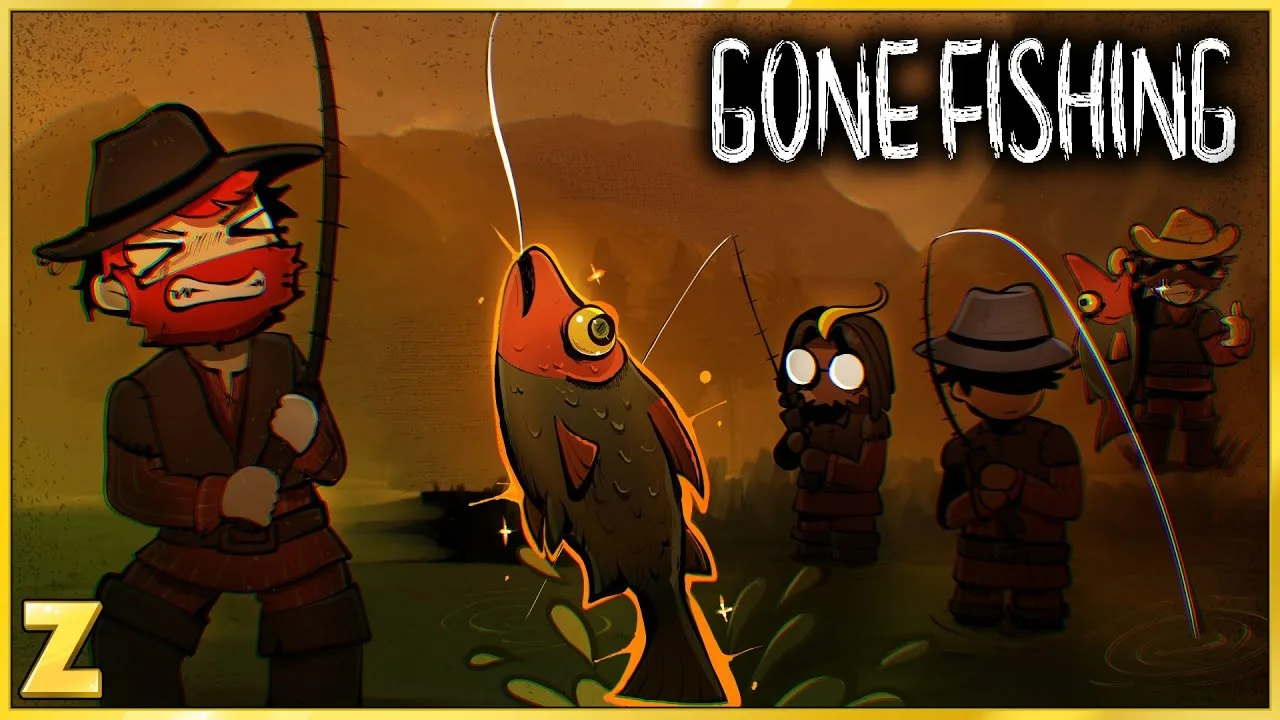
However, several camera fixes arrived earlier. Keeping that sequence straight helps when you encounter an old explanation of “GONE Fishing cant use mouse to look around.”
| Update | Relevant camera or interface changes |
|---|---|
| New push mechanic and cosmetics update | Fixed the host’s camera rotating 90 degrees after respawning |
| Fishing strike system update | Fixed camera snapping and locking when casting while looking upward |
| Skippable cutscene update | Fixed public-lobby viewpoint switching and an invisible options cursor |
| GONE Fishing 1.0 | Fixed clients appearing jittery while looking around and a stuck leaderboard interface |
A historical bug description can still help identify a trigger. Use it to recognize the sequence, then check your experience on the current version.
Jitter and a Locked View Need Different Descriptions
Jitter involves uneven-looking movement. A directional lock involves a view stuck facing a particular direction. Both interfere with looking around, but combining them into one description hides useful detail.
For example, “the view turns, but another player appears jittery while looking around” describes a different situation from “my view snapped sideways and no longer turns.”
Keep the affected perspective clear, too. Say whether you see the problem on your own screen or when watching another character move.
A Stuck Interface Is Another Separate Symptom
The 1.0 release also fixed the leaderboard interface becoming stuck on-screen. That is relevant when the visible problem begins with an interface panel rather than a rod cast or respawn.
Name the panel involved. “Leaderboard stays on-screen” is more useful than calling every obstructed view a frozen camera.
The practical goal is to identify the smallest accurate description of the failure. That keeps you focused on the behavior that needs attention.
Check a Recurring Problem Without Sacrificing Your Save
If “GONE Fishing cant use mouse to look around” still matches your current session, build a short account of the problem before making broad changes. Start with the trigger, the affected player, and which inputs continue working.
Use the following information to prepare a focused report:
| Detail to record | What to include |
|---|---|
| Trigger | Casting upward, respawning, joining a public lobby, or opening a menu |
| Player role | Host or joining player |
| View behavior | Locked direction, sideways rotation, host perspective, or jitter |
| Other input | Whether movement, menu clicks, and fishing buttons respond |
| Game version | The version on which the problem occurred |
| Repeatability | Whether the same action produces the same symptom again |
Repeat only the relevant comparison when practical. For a casting problem, compare ordinary water-facing casts with the sequence that caused the lock. For a joining problem, focus on what happens as you enter the lobby.
Keep the report concrete. Describe events in order rather than listing unrelated changes you have considered making. An exact trigger gives the developers something specific to investigate.
Keep Save Management Separate
GONE Fishing 1.0 supports existing saves and makes its new content accessible through them. The recommendation to start a new save concerns experiencing the redesigned progression and content.
Do not treat that recommendation as a mouse-look repair step. Preserve your progress while investigating a camera issue.
Version 1.0 also introduced encrypted saves. Existing saves are migrated and encrypted when the game launches, with an automatic backup created during that process.
If you make your own backup, include the complete set of required files for that save slot: the encrypted save, its MAC file, and its metadata file. Avoid editing save data as part of a camera diagnosis.
Use the reporting option on the GONE Fishing official website when you have a repeatable sequence to describe. Include the relevant details from the table and keep the focus on what happened during gameplay.
FAQ
What should I do about “GONE Fishing cant use mouse to look around”?
Update the game through Steam, then identify what triggered the problem. Earlier fixes addressed camera locking after upward casts, incorrect rotation after respawning, and unwanted switches to the host’s viewpoint. Describe your exact symptom if it happens again.
Was the camera lock after casting fixed?
Yes. An update fixed a bug where casting while looking upward could snap the camera 90 degrees to either side and lock it in that direction. Include the aiming direction and cast in any report of a recurrence.
Why can’t I see my mouse cursor in the options menu?
An update before 1.0 fixed a bug that sometimes made the cursor invisible when opening options. If “GONE Fishing cant use mouse to look around” describes your search but the issue occurs only inside options, report it as a missing menu cursor.
Do I need a new save to address camera problems?
Keep your existing save while checking the camera behavior. Version 1.0 supports existing saves, and the recommendation to begin a new run concerns the updated progression experience. Identify the camera trigger and affected inputs before considering changes unrelated to the symptom.
Continue with
 GONE Fishing Controls: Casting, Reeling, and PC KeysMaster GONE Fishing controls for casting, reeling, bait, and inventory management. Learn keyboard inputs, controller options, and how to meet your quota.
More in Controls & PC Help
See all Controls & PC Help
Useful pages
GONE Fishing Bait Tier List: Heart to Worm Rankings
Use this GONE Fishing bait tier list to compare Heart, chopped bait, and early catches. Learn bait scores, trap changes, and how to spend rare bait wisely.
GONE Fishing Achievements: Unlock Guide for Version 1.0
Track GONE Fishing achievements with survival milestones, fish weight goals, hidden secrets, and 1.0 boss rewards. Plan your route toward full completion.
GONE Fishing Arctic Map: Orca, Yeti & Survival Guide
Explore the GONE Fishing arctic map with tips for finding deep water, catching the Orca, handling the Yeti, gathering bait, and using portals to save time.
GONE Fishing Crab Jumpscare: Tiny Crab Survival Guide
Learn how the GONE Fishing crab jumpscare works, identify Tiny Crab and larger threats, adjust loud audio, and prepare for dangerous shoreline encounters.
Join the community
Official channels for news, updates and player help: